Saltar al contenido
Features

Everything Monuvia does, no fluff.

A budget you actually understand, that fills itself in and fits in your pocket. Every feature links to its manual article, with real steps and screenshots.

1
question when you open it: how much you can spend this week
3
ways to log: by hand, by photo, or automatically
PDF·XLS
exportable account statement, with real formulas
light and dark, installable on iPhone, Android, Mac, and PC

Budget and available

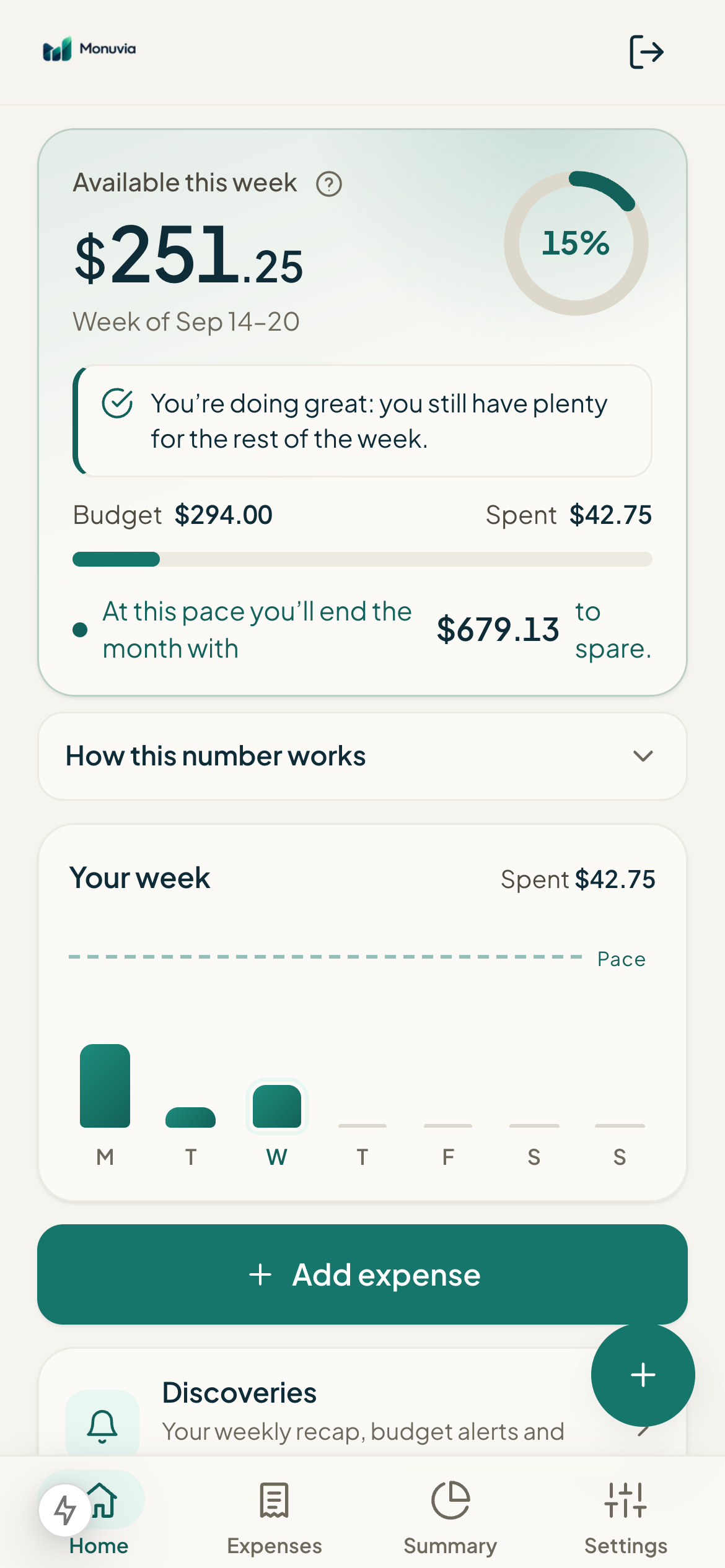
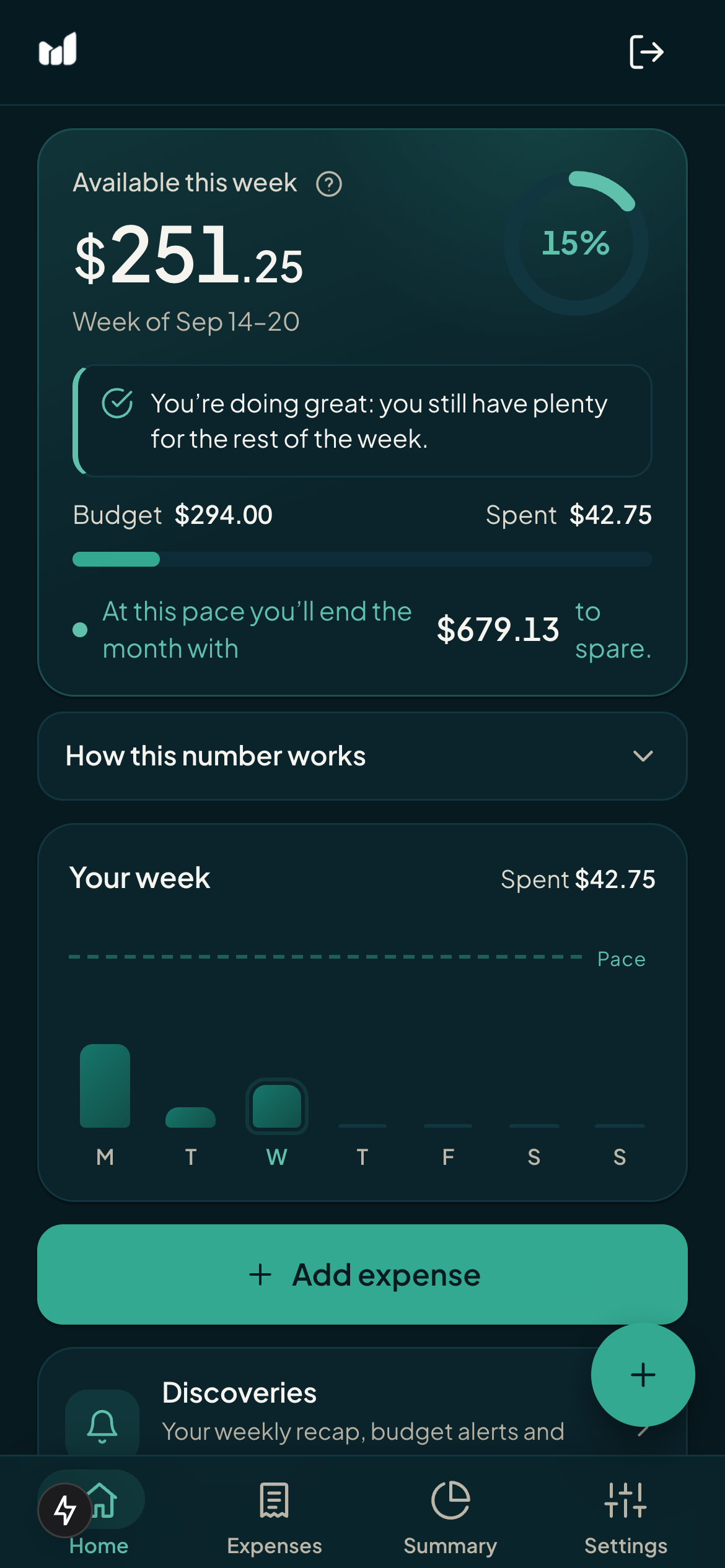
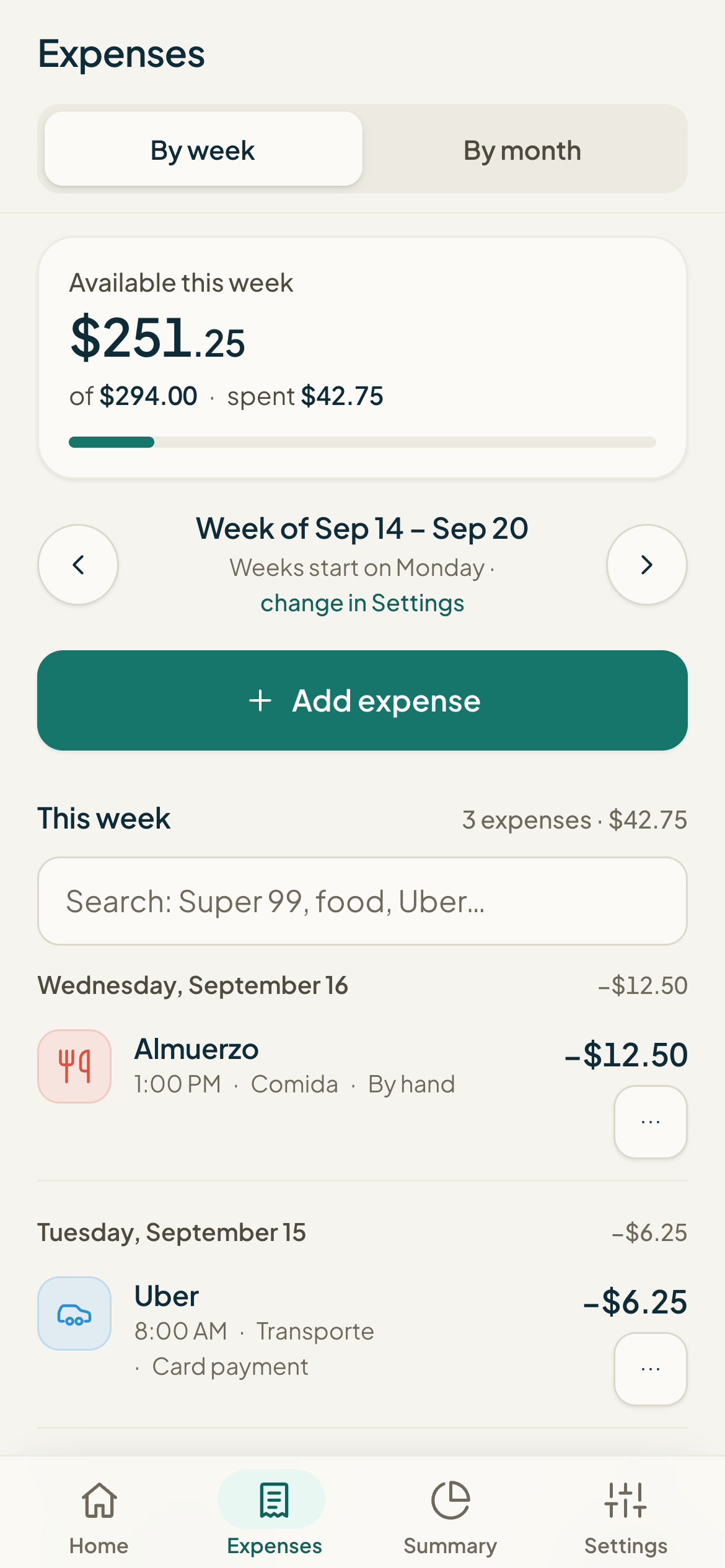
Monuvia sets aside your bills and your savings goal, then spreads what's left across the weeks. Each week's budget is fixed and only drops with what you spend.
  • A cycle at your pace. monthly by weeks or biweekly (1–15 / 16–end)
  • Your week, your way. start on Monday, Sunday, or any day you choose
  • Savings first. your monthly goal is set aside before the spendable amount is figured
  • It's a calculation, not a balance. based on what you log; it doesn't check your bank

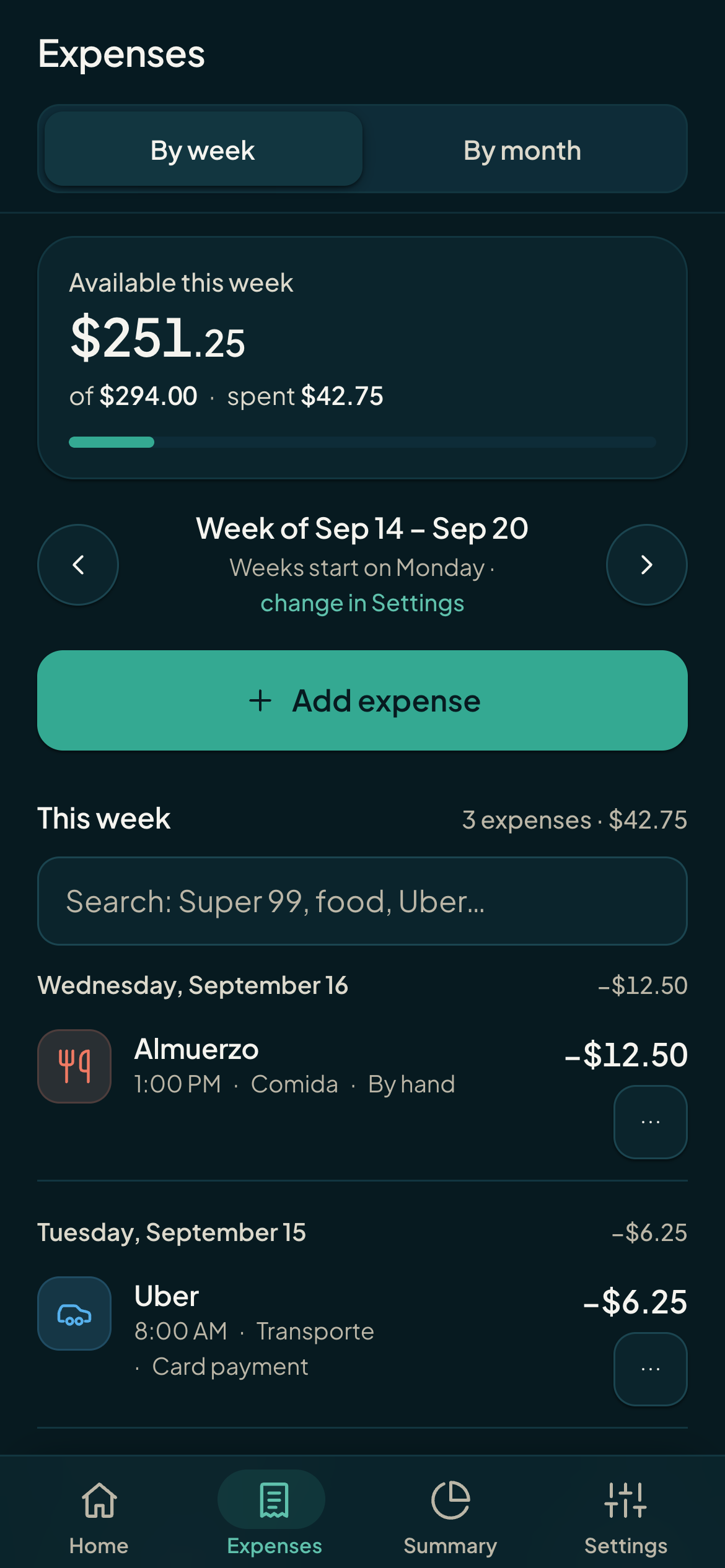
Understanding available this week

Monuvia dashboard showing available this week (light theme)Monuvia dashboard showing available this week (dark theme)

Expenses and receipts

Log it in seconds or photograph a receipt: the total is recognized right on your phone. After that, everything under control by week or by month.
  • By hand or by photo. the receipt text is read on your device
  • Edit and organize. change amount, merchant, category, or date; or delete
  • Move to bills. turn an expense into a fixed payment, just this month or every month
  • Possible duplicates. it flags two identical charges so you can review them

Add an expense

Transaction list by week and by month (light theme)Transaction list by week and by month (dark theme)

Summary and account statement

See where your money goes at a glance, and take the document with you when you need it.
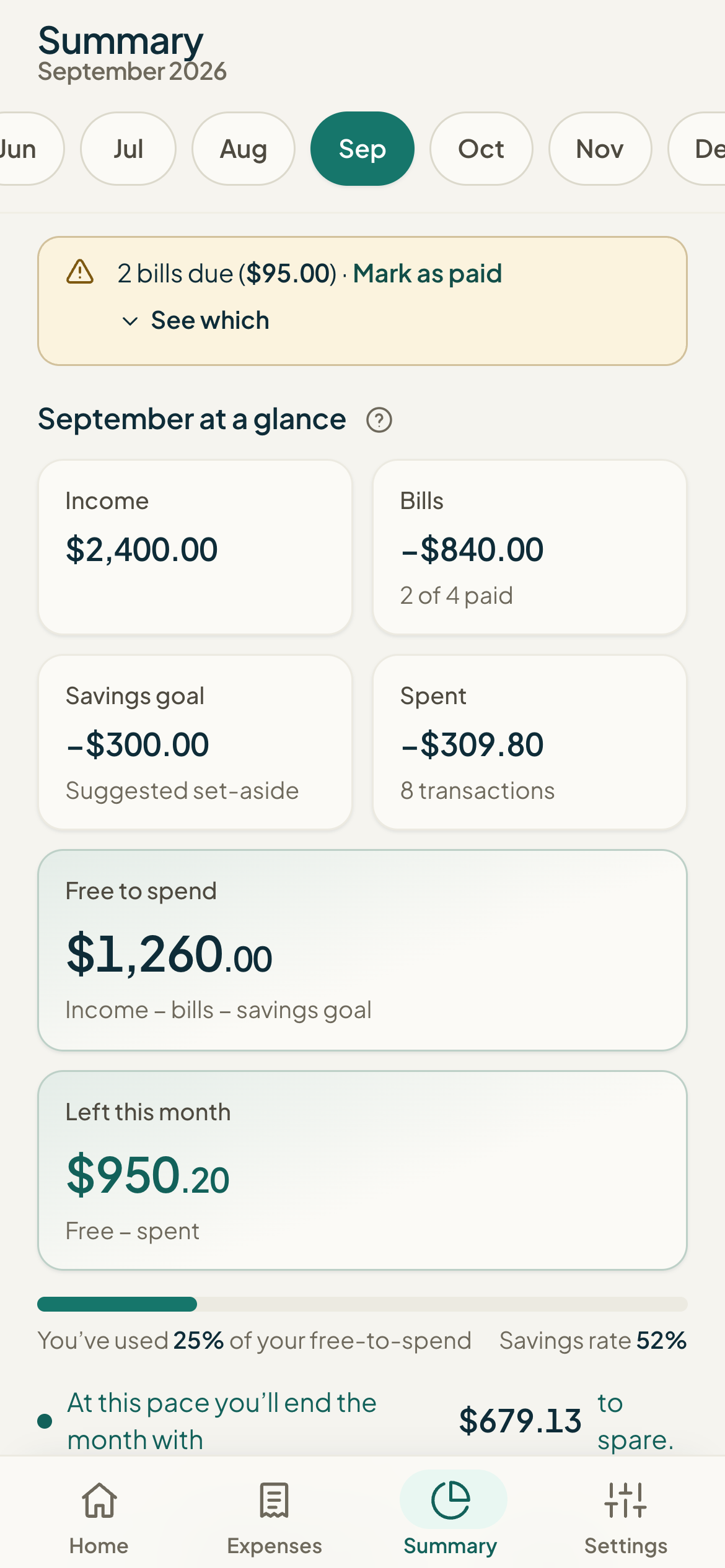
  • Donut by category. with amounts and percentages, month to month and a yearly table
  • Account statement. for a month or the year: income, bills, and expenses
  • PDF and Excel. PDF with Monuvia's branding; Excel with formulas that recalculate

Export to PDF and Excel

Summary with a donut by category and monthly totals (light theme)Summary with a donut by category and monthly totals (dark theme)

Bills

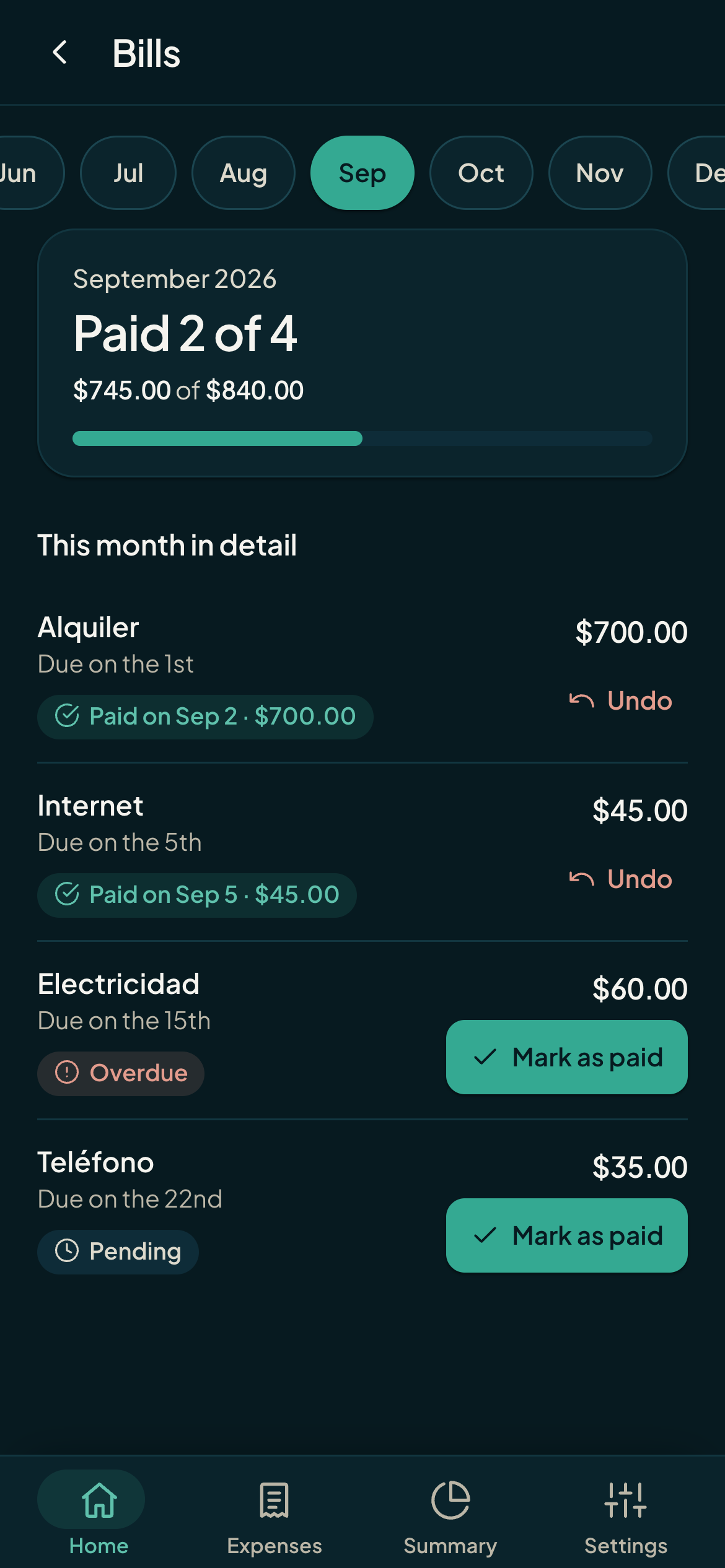
Your fixed payments, always up to date. Mark what you paid with its real amount and date.
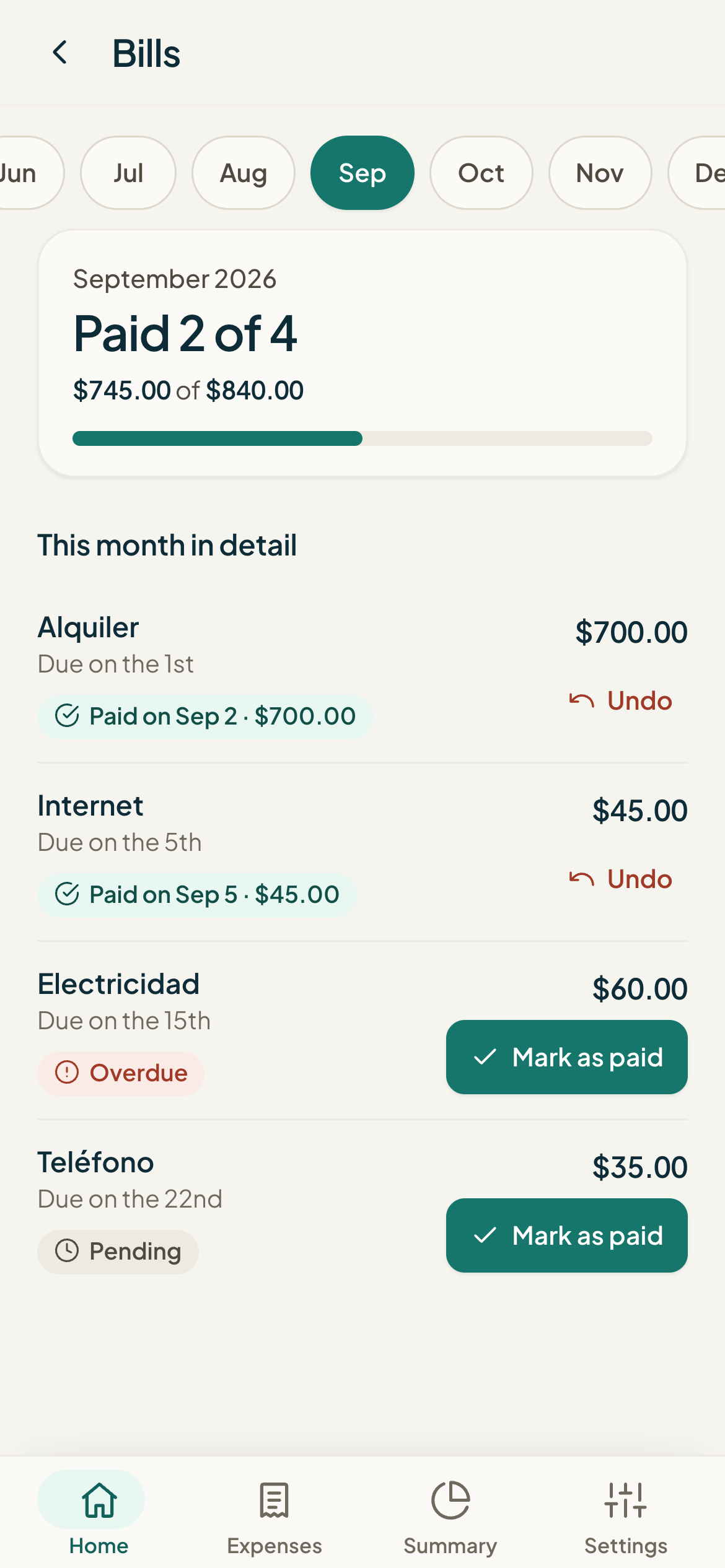
  • Actual payment. if you pay a different amount than planned, the math uses what you actually paid
  • Monthly history. plus an option to undo a payment
  • Countdown. the dashboard shows how many you've paid this month

Manage bills

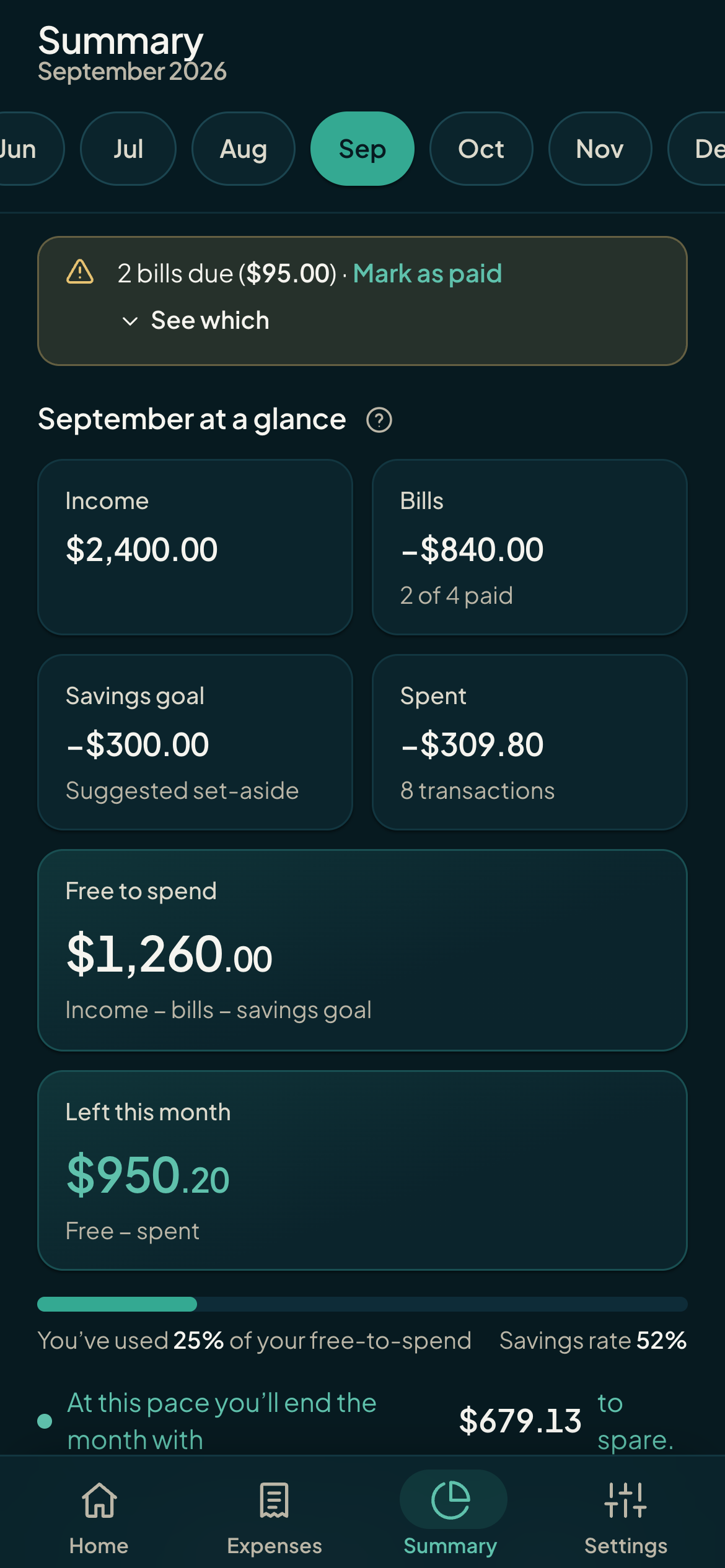
Bills screen with the month's payments (light theme)Bills screen with the month's payments (dark theme)

Automatic capture

Connect your phone once and your contactless payments come in on their own, with available this week kept up to date.
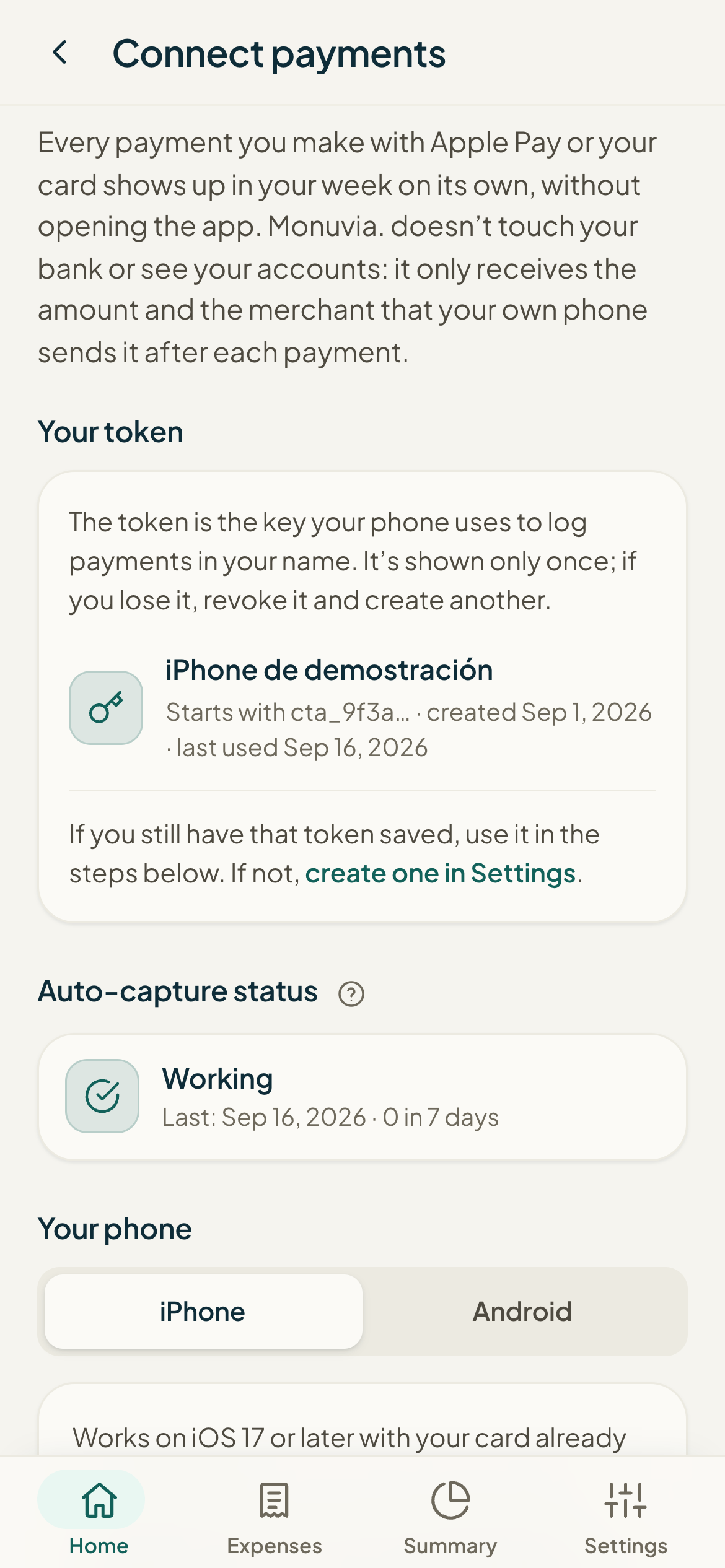
  • iPhone. an Apple Shortcut logs every Apple Pay payment
  • Android. an automation forwards the text of your bank notification
  • Your bank, untouched. your phone sends it; Monuvia never connects to your bank
  • One token per device. revocable whenever you want

Set up automatic capture

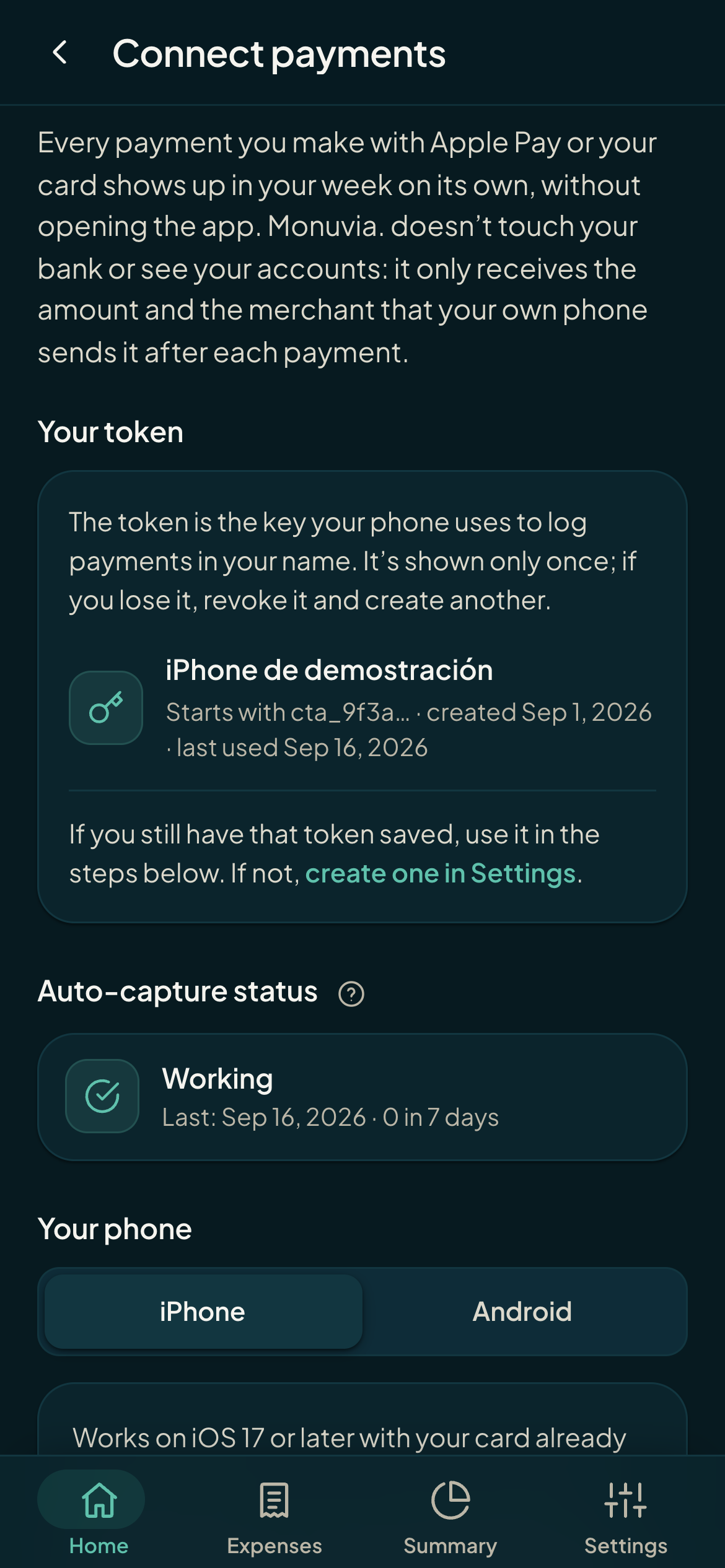
Screen to connect automatic payment capture (light theme)Screen to connect automatic payment capture (dark theme)
And more

Built for real life

Offline

Log expenses and take photos with no signal: they are queued on your phone and upload when you reopen Monuvia with a connection.

See it in the manual →

Shared household

Invite by code: everyone signs in with their own account and works on the same budget. It also works perfectly on your own.

See it in the manual →

Reminders and protection

Alerts for bills and income, plus a biometric lock with Face ID or your fingerprint on this device. Everyone sees only their own data.

See it in the manual →
Technology, no fluff

Intelligence that lives on your device

Monuvia doesn't use a chatbot or send your finances to an external artificial-intelligence service. Here's exactly what technology is involved and where it runs.

On-device AI

Text recognition from your receipts (OCR)

When you photograph a receipt, an optical character recognition model (Tesseract.js) runs inside your browser. The image never leaves your phone; only the text is used. It's the only machine-learning component in Monuvia, and it only transcribes image to text: it doesn't interpret or decide for you.

Rules

Pulling out the total and the merchant

From the recognized text, Monuvia takes the total (prioritizing the "TOTAL" line, discarding subtotals, sales tax, or reward points) and the merchant using clear rules. These are deterministic rules you can predict, not an "intelligent" interpretation.

Learns from your history

Category suggestion

As you type the merchant, Monuvia suggests a category based on your rules and how you classified things before. The calculation happens in your own database; there's no trained model or external service. You always decide.

Automation

Capturing payments from your phone

On iPhone, an Apple Shortcut logs your Apple Pay payments; on Android, an automation app forwards the notification text. It's your phone that sends the data: Monuvia never connects to your bank.

Calculation

Budget engine

Available this week is calculated with a clear formula in your database (income − bills − savings, spread across days). It's deterministic, not a prediction.

Database

Your data, isolated per user

Each account only sees and changes its own data (or that of the household it has joined), thanks to per-user access rules in the database.

Automatic capture

What's proven, with the caveats

The capture is done by your phone, not by Monuvia. That's why it depends on your device and a one-time setup.

iPhone (iOS 17+)

A signed Apple Shortcut sends every Apple Pay payment to Monuvia, hooked to a Shortcuts automation with the "Transaction" trigger. It requires a card in Wallet and creating the automation.

Android

An automation app (MacroDroid or Tasker) forwards the text of your bank or Google Wallet notification to Monuvia, which extracts the amount and the merchant. It requires installing the app and giving it access to notifications.

Set up automatic capture →

Compatibility

Honest limits

  • Install. In Chrome or Edge an install button appears; in Safari (iPhone/Mac) you add it from the share menu. Device-by-device guide.
  • Push notifications. They need your permission and, on iPhone/iPad, the app added to your home screen.
  • Biometric lock. Face ID, fingerprint, or Windows Hello require a compatible device and opening the app over HTTPS; otherwise, you use your password as always.
  • Offline. New expenses and photos are saved; they upload when you reopen the app with a connection. There's no background sync while the app is closed.
  • Automatic capture. It depends on your phone and the setup you do; it's not a direct connection to your bank.

Start keeping track

Create your account and find out, this very week, how much you can spend with peace of mind.