

Bills: log the actual payment, history, and undo
Bills are your fixed payments: rent, loan payments, utilities. Here's how to create them, mark them as paid with the actual amount and date, review your history by month, and undo a payment.
Stay on top of your fixed monthly payments and have your budget use what you actually paid, not just what you planned.
- Be signed in and online: creating bills, marking them as paid, and undoing payments all require internet.
- Have created at least one bill in Settings.
A bill is a fixed payment that repeats every month: rent, a loan payment, electricity, internet. Monuvia subtracts them from your budget, so your available amount for the week already accounts for them. Marking a bill as paid is mainly for your own tracking: knowing what's left to pay this month and when you paid it.
#Create a bill (in Settings)
- Go to Settings and scroll down to the "Bills" section.
- Under "Name," type something like "Rent."
- Under "Amount," enter the usual amount, and under "Due day," the day of the month it's due (1 to 31).
- Tap "Add bill."
#Mark a bill as paid
Each month, when you pay, log it on the Bills screen with the actual amount and date.
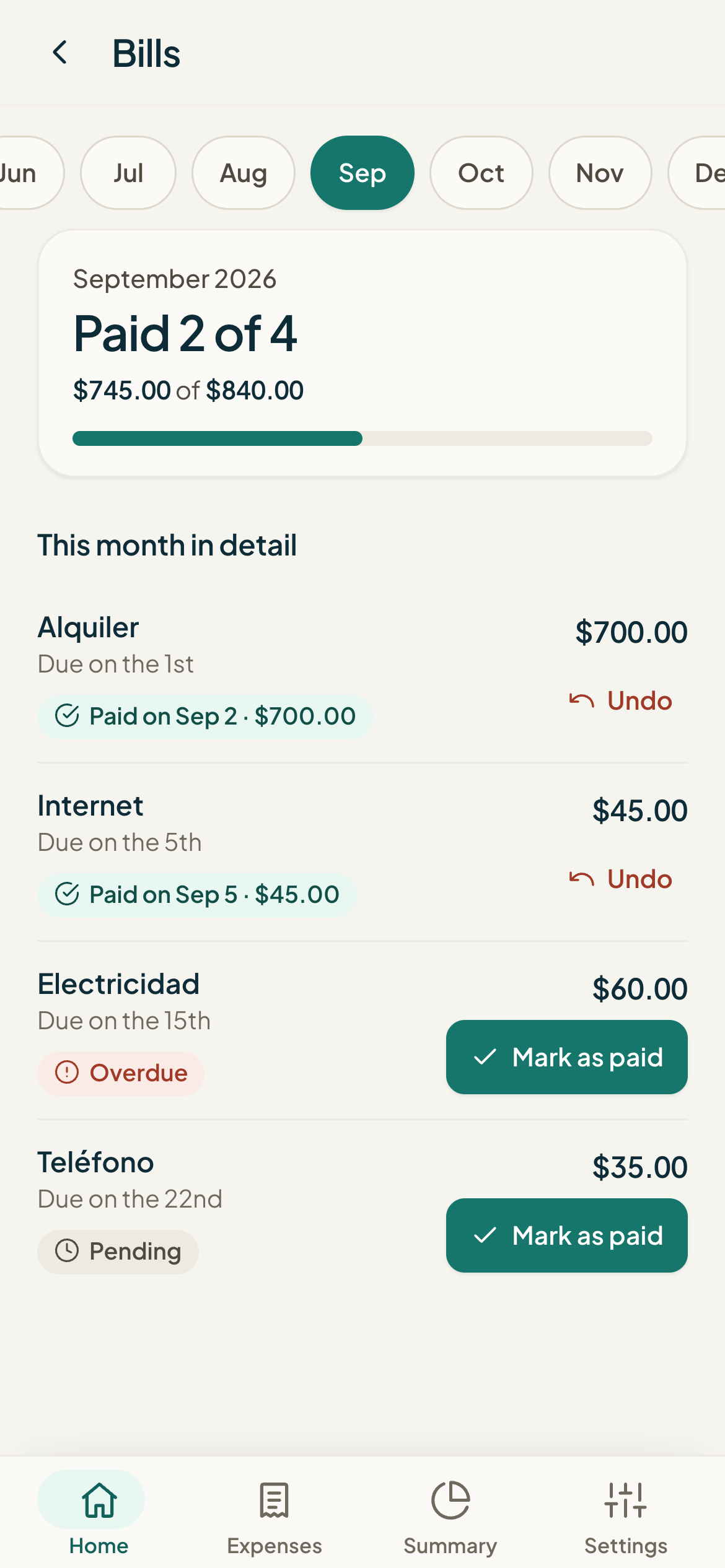
- Open Bills (/obligaciones). At the top you'll see "Paid X of Y" and the month's total.
- Check that the month selected in the month row is the right one.
- On the bill you paid, tap "Mark as paid."
- "Amount paid" is already filled in with the planned amount; change it if you paid a different amount.
- "Payment date" defaults to today; adjust it if you paid on a different day.
- Tap "Save."
The bill will then show something like "Paid on Sep 5 · $250.00." If you paid a different amount than planned, you'll also see "(planned $…)" so the adjustment is clear.
#History by month
Using the month row at the top, you can move to any month of the year to see what you paid. Active bills always appear; a paused one shows up in a month only if it had a payment that month. Each row shows its status: "Pending," "Overdue," or "Paid on … · $…."
#Undo a payment
If you marked a payment by mistake, you can delete it and the bill goes back to pending.
- In Bills, go to the month of the payment.
- On the already-paid bill, tap "Undo."
- Confirm in the prompt that appears.
Common problems
I don't see my bills on the screen, just a message telling me to add them.
I marked the wrong bill as paid.
It says that bill is already marked as paid this month.
I paid less than planned—do I need to do anything else?
Keep learning
Adding an expense: by hand, by photo, and through automatic channels
Three ways to log an expense in Monuvia: typed in by hand from Home, from a photo of a bill, or automatically from your phone. Here's each one and when to use it.
BudgetUnderstanding your available amount and monthly summary
What your available amount really means (a calculated figure, not a bank balance), how to read the "How this number is calculated" breakdown, why it changes, and how to make sense of the Summary's donut chart and yearly table.
BudgetAdd fixed or one-off income, edit it, and pause it
Add your salary and other income, edit it, pause anything you don't want counted, and delete it. This is how the money that Monuvia spreads across your available amount comes in.