

Create or join a household (and what happens when you leave)
Share one budget with your partner or family using an invite code, each of you from your own account. Here's how to invite someone, how to join, and what happens to your data when someone leaves.
Two or more people working on the same budget, each with their own account, plus a clear understanding of what happens to your data when you join or leave a household.
- Each person needs their own Monuvia account and an internet connection.
- The person joining must create their account before entering the code.
- The invite code is valid for 7 days and can only be used once.
A shared household lets you and someone else (your partner or a family member) view and manage the same budget without sharing a single account. Each of you signs in with your own email and password, but you both work on the same income, bills, expenses, and available amount.
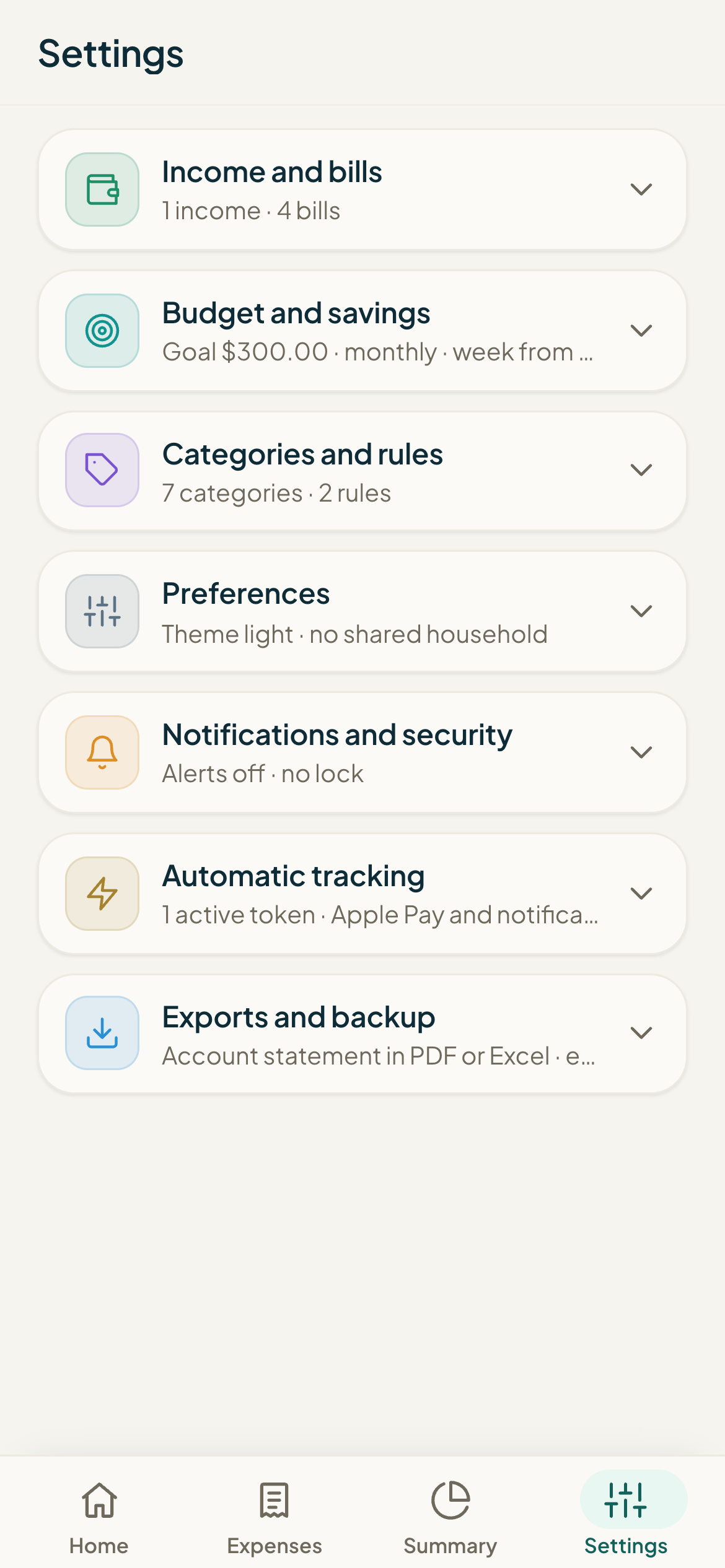
A household has an owner: the person whose data is shared. Everyone else joins with a code and can then view and edit that data. It's all managed from Settings, in the "Shared household" section.
#Invite someone (be the owner)
- Open Settings and scroll down to "Shared household."
- Tap "Invite with a code."
- A box appears with an 8-character code. Tap "Copy code" to have it ready.
- Share that code with the person you want to invite (by text, in person, however you like).
- Remember: the code is valid for 7 days and can only be used once.
#Join a household (you were invited)
- First, create your own Monuvia account and sign in with it.
- Go to Settings and scroll down to "Shared household."
- Under "Got invited? Enter the code," type or paste the code you were given.
- Tap "Join."
- Confirm the prompt: when you join, you'll see the shared budget, and your current data is kept and comes back if you ever leave the household.
#How it works under the hood
- There are no roles or permissions: any member can add, edit, or delete income, bills, expenses, categories, and rules.
- Who did what isn't recorded: Monuvia doesn't show which person added or deleted an expense.
- The available amount, the summary, and the donut chart are all calculated from the owner's budget, so everyone sees the same number.
- Each person keeps their own login and, if they want, their own biometric lock and notifications.
#What happens when you leave
- In Settings › Shared household, tap "Leave household" (if you're a member) or "Stop sharing" (if you're the owner).
- Confirm the prompt.
- The app reloads and you're back to seeing your own data.
- If you were a member: you stop seeing the shared budget and get your own data back, exactly as it was.
- If you were the owner: sharing stops, everyone else loses access, and everything that was in the household stays yours.
- Anything captured inside the household stays with the owner, not with whoever entered it.