

Turn on reminders and the biometric lock
Turn on push reminders for your upcoming bills and income, and protect the app with Face ID or fingerprint. Both are managed from Settings and work independently of each other.
Get alerts about your upcoming bills and income and, if you like, add a Face ID or fingerprint lock each time you open the app on your device.
- For reminders: turn on notifications and, on iPhone or iPad, have Monuvia installed as an app.
- For the lock: a device with Face ID, Touch ID, fingerprint or Windows Hello, and opening the app over HTTPS (the published or installed app, not local development).
- A session you're already signed in to: the biometric lock protects access; it doesn't replace your sign-in.
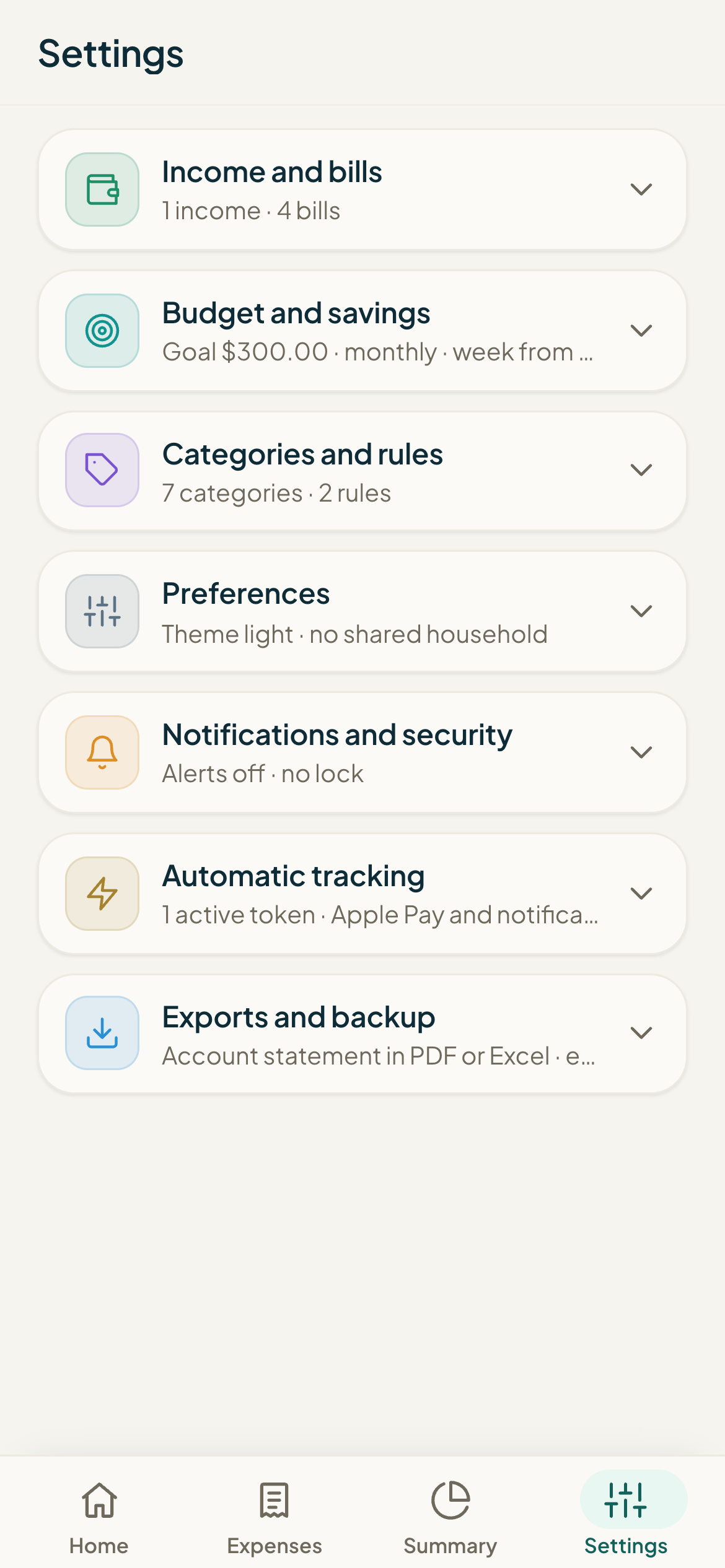
Settings has two separate controls: Notifications, for reminders, and Security, for the lock with Face ID or fingerprint. They work independently, so you can turn on one, the other, both, or neither.
#Reminders for bills and income
When you turn them on, Monuvia alerts you about your upcoming bills and income. The alert goes to the owner of that bill or income, on every device where they're turned on.
- Go to Settings and find the Notifications section.
- Under "Reminders and alerts," tap Turn on.
- Accept the notification permission your browser or system asks for.
- You'll see it marked "On" for this device. To turn them off, tap Turn off.
#Lock with Face ID or fingerprint
The biometric lock is a local lock on a session you're already signed in to: when you open the app on that device, it asks for your Face ID, fingerprint or Windows Hello before showing your finances. It's not a sign-in and it doesn't encrypt your data; it's a convenience layer so no one who picks up your unlocked phone can see your numbers.
- Go to Settings and find the Security section.
- Under "Lock with Face ID or fingerprint," tap Turn on.
- Confirm with your biometrics when the device prompts you.
- You'll see it marked "On" for this device. The next time you open the app, it'll ask you to unlock.
On the lock screen, tap Unlock to get in. If your biometrics fail, there's a "Can't? Sign out" option so you don't get locked out.
- It's turned on per device: if you want the lock on your phone and your tablet, turn it on for each one.
- To remove it, go to Settings › Security and tap Turn off.
- It doesn't replace your password: it's a lock on your session, and someone with access to your browser storage could get around it. For full privacy, sign out.