

Start here
The quickest way to get up and running with Monuvia: create your account, add your income and bills in Settings, set your savings goal and cycle, and understand where the number on your Home screen comes from.
Monuvia ready for everyday use: your income and bills added, your goal and cycle set, and a clear sense of what the big number on your Home screen means.
- A valid email to create your account
- An internet connection to add your income, bills, and goal (adding expenses and taking photos still work offline)
- Knowing how much you earn each month and what fixed payments you have
Monuvia answers one question: how much do you have available this week? For that number to mean anything, you first tell it what's coming in and what's already committed. It takes four steps, and you only do them once.
#1. Create your account
- Open the app and tap "Create your account" (or go straight to the sign-up page).
- Enter your "Email" and a "Password" with at least 8 characters.
- Tap "Create account."
- Check your email and tap the confirmation link. Then sign in with your "Password" from the "Sign in" screen.
#2. Add your income and bills
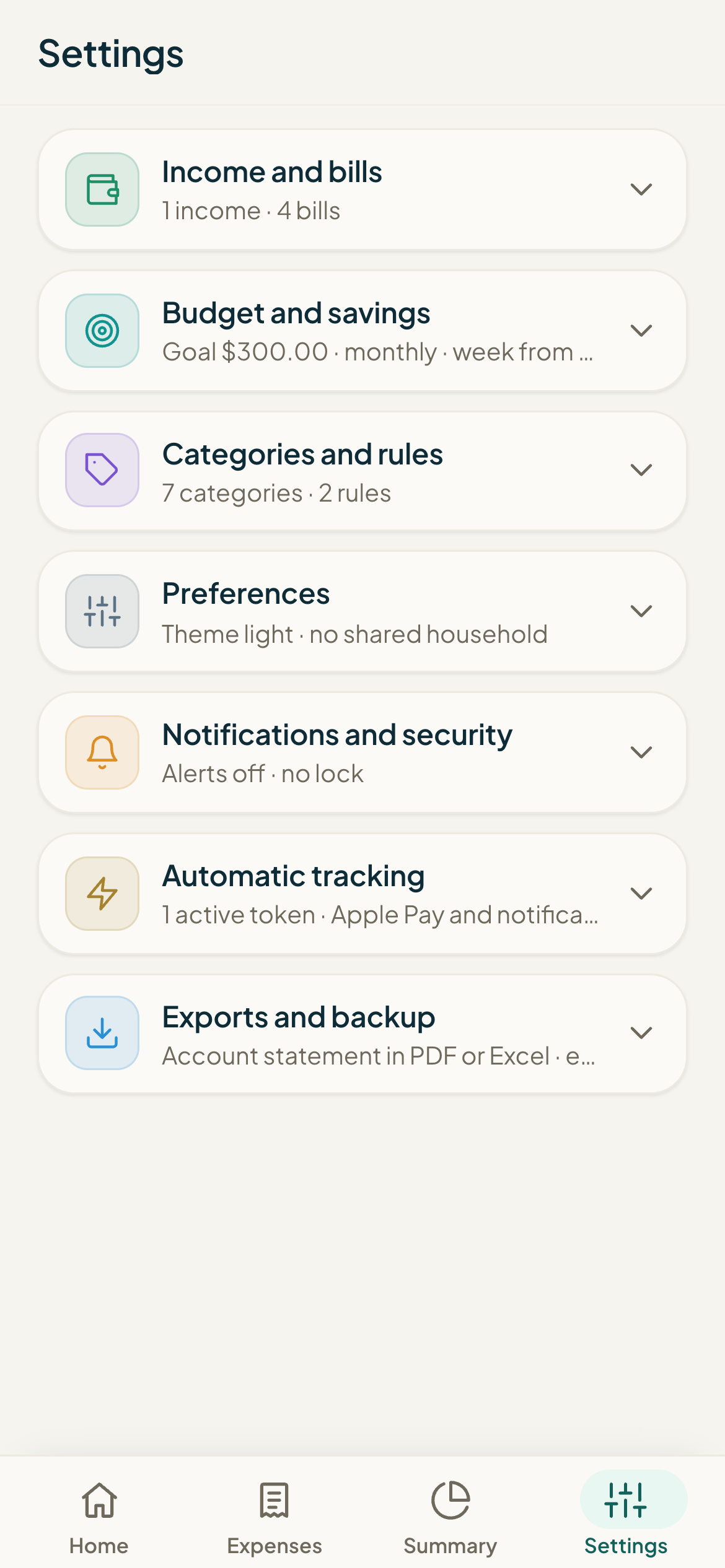
Go to "Settings." This is where you tell Monuvia what comes in and what you have to pay every month.
- In the "Income" section, choose a "Type" ("Monthly (fixed)" or "One-off (this month)"), then enter the "Amount," a "Name" (for example, Salary), and the "Day of the month you receive it." Tap "Add income."
- In the "Bills" section, enter the "Name" (for example, Rent), the "Amount," and the "Due day." Tap "Add bill."
- Repeat until you've added all your income and fixed monthly payments.
#3. Set your goal and your cycle
- In "Settings," scroll down to the "Budget" section.
- Under "Monthly savings goal," enter how much you want to set aside each month (you can leave it at 0).
- Under "Cycle," choose "Monthly (weeks)" or "Fortnightly," depending on how you get paid.
- Under "Week starts," choose "Monday" or "Sunday."
- Tap "Save changes."
#4. Understand your "available amount"
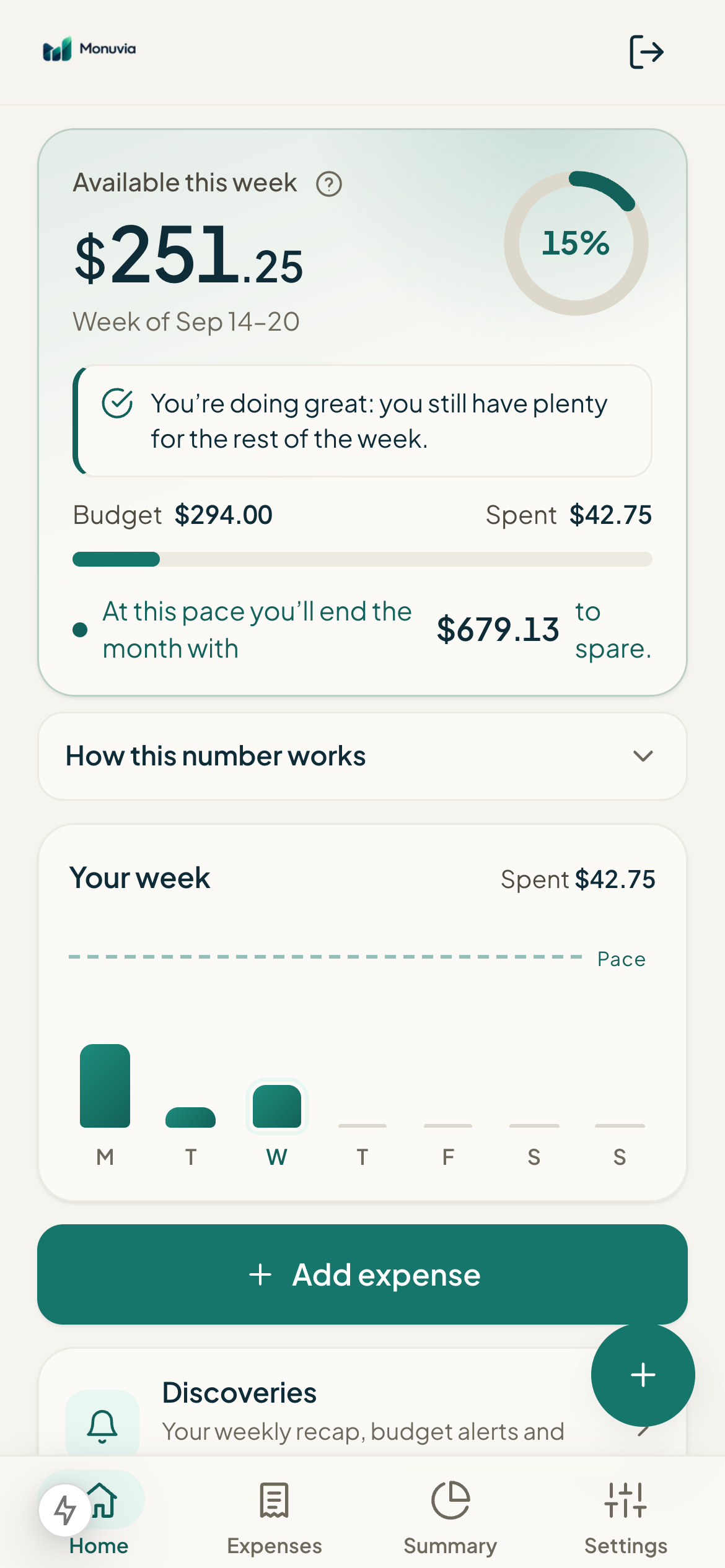
Go back to the Home screen. The big number under "Available this week" is what you can spend for the rest of the week without going off plan. It isn't your bank balance: it's a figure Monuvia calculates.
- It takes your income for the period, then subtracts your bills and savings goal. That's what's free to spend.
- It spreads what's free across the days in the period and assigns this week's budget.
- As you log expenses, it subtracts them from the week's budget. What's left is your "available amount."
Tap "How this number works" on the Home screen to see the full breakdown (income, bills, goal, the week's budget, and what you've spent).
That's it. You're ready to add expenses day to day and watch your available amount move.