

Export a month or a year to PDF and Excel
How to download your account statement (income, bills, and expenses) for a single month or the whole year as a PDF to print, or as Excel with formulas that recalculate when you edit the amounts.
A tidy document with your income, bills, and expenses: a PDF with Monuvia's branding to print or share, or an Excel file with live formulas so you can keep working with the numbers.
- An internet connection (the account statement is built from your data on the server)
- Data already entered for the year or month you want to export
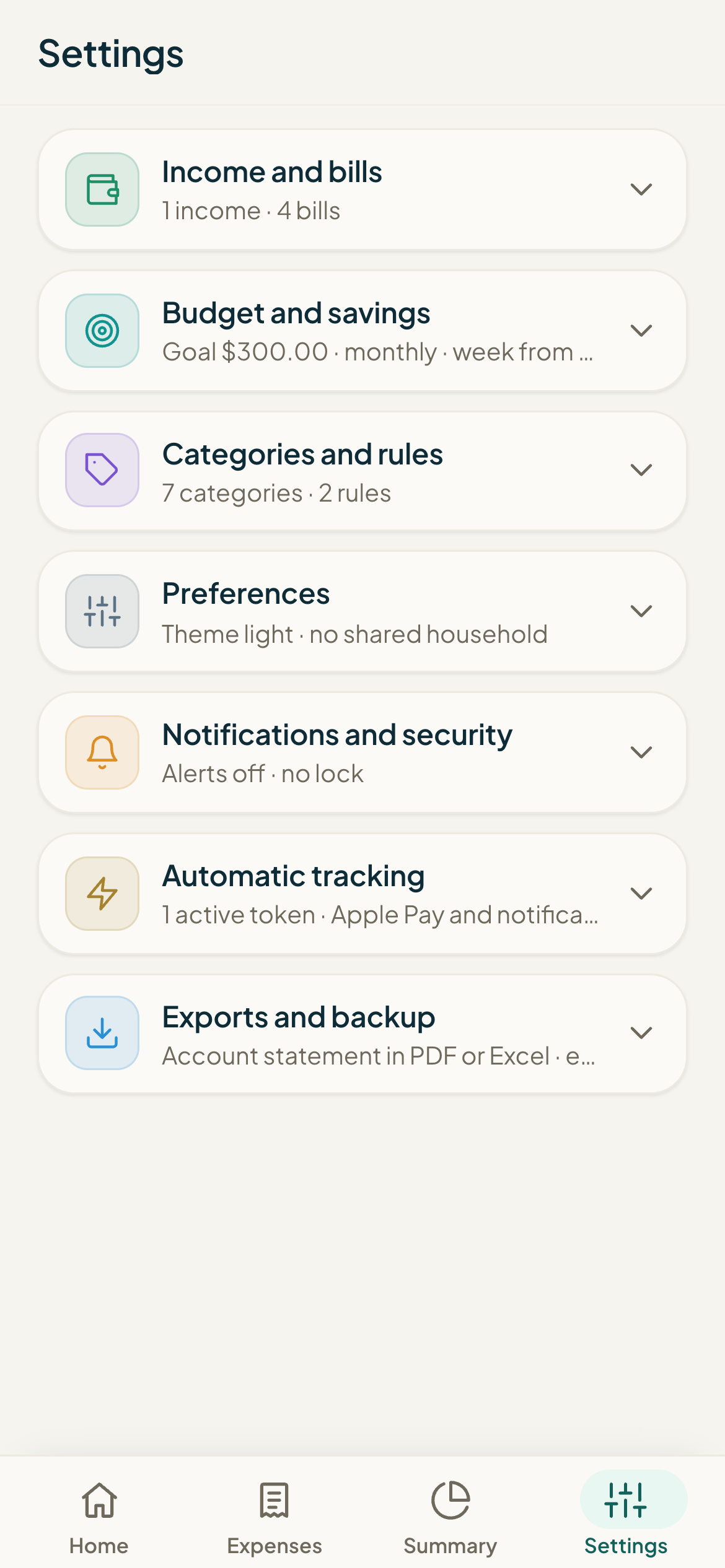
Monuvia can generate an "Account statement": a document with your income, bills, and expenses for a specific month or for the whole year. You'll find it in Settings, next to the CSV backup.
#Generate the document
- Open "Settings" and scroll down to "Account statement".
- Under "Year," pick the year you want (this year or either of the two before it).
- Under "Period," choose "Whole year" or a specific month.
- Tap "↓ Export PDF" for the printable document, or "↓ Export Excel" for the spreadsheet with formulas.
- Wait for it to say "Generating…" and the file will download on its own.
#What the PDF includes
The PDF carries Monuvia's branding (pine green and brass) and is meant for printing or sharing. It opens with a header showing your email, the date it was generated, and the period, followed by:
- Summary cards: income, bills, savings goal, free to spend, spent, and remaining.
- An income table with its total.
- A bills table with status, planned, and paid.
- Expenses by category, each with its percentage of the total.
- If you export a month: the expense detail (date, merchant, category, and amount). If you export the year: the monthly breakdown.
#What the Excel file includes (with formulas)
The Excel file isn't a snapshot of your numbers: it has real formulas. Each detail sheet sums its own columns and the "Summary" sheet points to those totals, so when you edit an amount, the totals and the summary recalculate on their own.
- A "Summary" sheet: item and amount, with the free-to-spend and remaining figures calculated by formula.
- An "Income" sheet, a "Bills" sheet (with a "Counted" column), and an "Expenses" sheet by category, each with its own summed total row.
- If you export a month: a "Detail" sheet with every expense. If you export the year: a "Monthly" sheet with all twelve months and "Remaining" as a formula.
- Each category's percentage is also a live formula based on the total.