

Edit expenses, review possible duplicates, and turn an expense into a bill
Fix an expense's amount, merchant, category, or date; delete it; understand the possible-duplicate flag; and turn an expense into a bill (just this month or every month).
Keep your expenses tidy: fix anything that was entered wrong, delete what doesn't belong, know when the same purchase may have been recorded twice, and move an expense that's really a fixed payment into your bills for the month.
- Have an internet connection: editing, deleting, and moving to bills all need a connection (adding an expense and taking a photo do work offline).
- Have recorded at least one expense.
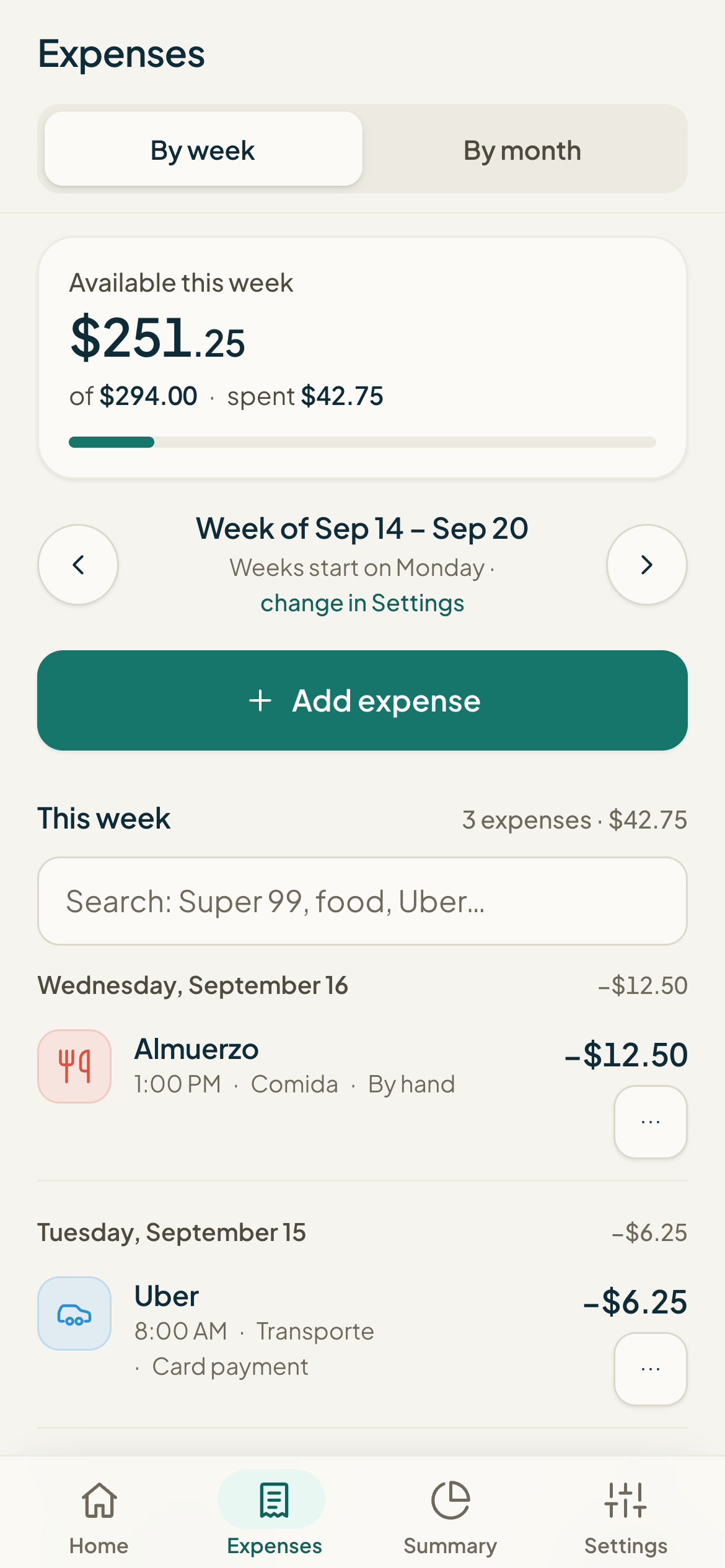
In Expenses, you see every entry with its merchant, date, time, category, and source. Under each one are three buttons: Edit, To bills, and Delete. Each one acts on that specific expense.
#Edit an entry
Tapping Edit opens that expense in a form with fields for Amount, Category, Merchant or note, and Date and time. You can change any of them, including the exact date and time.
- In Expenses, find the entry and tap Edit.
- Adjust whatever you need: Amount, Category (or "No category"), Merchant or note, and Date and time.
- Tap Save changes. While it's saving, you'll see "Saving…".
- If you change your mind, tap Cancel before saving.
#Delete an entry
- Tap Delete on the expense you want to remove.
- Confirm in the message that appears (it shows the amount and the merchant).
- The button shows "One moment…" while it's deleting.
#Possible duplicate: just a flag to review
When two expenses have exactly the same amount and happened less than 20 minutes apart, Monuvia flags both with a "Possible duplicate" tag next to their date and category. This often happens when the same purchase comes in twice: for example, the automatic capture from Apple Pay / Google Pay plus an entry you added by hand.
#Turn an expense into a bill
If an expense is really a fixed payment (a loan installment, a monthly subscription, a utility), you can move it to your bills. When you do, it stops counting as this week's spending and is recorded as an already-paid bill for the month it happened in.
- Tap To bills on the expense.
- Read the message: "It stops counting as this week's spending and moves to your bills for the month, already paid. Does it repeat every month?".
- Choose Just this month if it was a one-off, or Every month if it will repeat.
- To leave it as is, tap Cancel.
- Just this month: creates (or reuses) the bill with that name but leaves it paused, so it only counts in the month that has a recorded payment and doesn't repeat.
- Every month: leaves the bill active and schedules it every month, starting from the day the expense happened.
- In both cases, the original expense is removed from the list and the amount no longer comes out of your week.
Common problems
I tap Save changes and it won't save.
I see "Possible duplicate," but the expense isn't a duplicate.
I moved an expense to bills by mistake.
I converted an expense to "Every month," but it shouldn't repeat.
Keep learning
Categories, per-category limits, and merchant rules
Create categories to sort your expenses, set an optional monthly limit that shows up in Summary, and define merchant rules so expenses sort themselves. Everything is calculated inside your own account, with no external AI.
EverydayAdding an expense: by hand, by photo, and through automatic channels
Three ways to log an expense in Monuvia: typed in by hand from Home, from a photo of a bill, or automatically from your phone. Here's each one and when to use it.
EverydayBills: log the actual payment, history, and undo
Bills are your fixed payments: rent, loan payments, utilities. Here's how to create them, mark them as paid with the actual amount and date, review your history by month, and undo a payment.